
Engineering · · 3 min read
How WorkTool holds other apps inside its window
SetParent, a layered host window, window regions for menus on top, and why notes are windows of their own.
WorkTool development
WorkTool shows other programs inside its own window. Character Map, Notepad++ or SumatraPDF appear in a tab, without their title bar, resized with the pane, while their menus and keyboard input keep working. This is how that works, and the three problems that had to be solved along the way.
The basic move: a new parent window
Every visible window on Windows has a parent. A normal app window's parent is the desktop. Windows lets one program give another program's window a new parent with the SetParent function, and from then on the window is drawn inside the new parent and moves with it.
WorkTool does this in a few steps when you open an app:
- It starts the app and waits for the window the launch produced. It prefers windows of the started process or its children, then windows of the same program, and only takes a splash screen if nothing better appears.
- It removes the window's caption and frame styles, so the app has no title bar inside WorkTool.
- It moves the window into a host window that WorkTool owns and positions exactly over the pane, in physical pixels (the pane's size multiplied by the display scaling).
- When you quit WorkTool, it reverses all of this: original styles, original size, original parent. Quitting WorkTool never closes another app.
Apps with a classic menu bar keep a slightly different window style, because a child window can't have a menu. A bug in the check for exactly that case made WorkTool think every menu-bar app had refused to move; it was fixed in 0.2.0, and Notepad++ now runs inside WorkTool with its menus working.
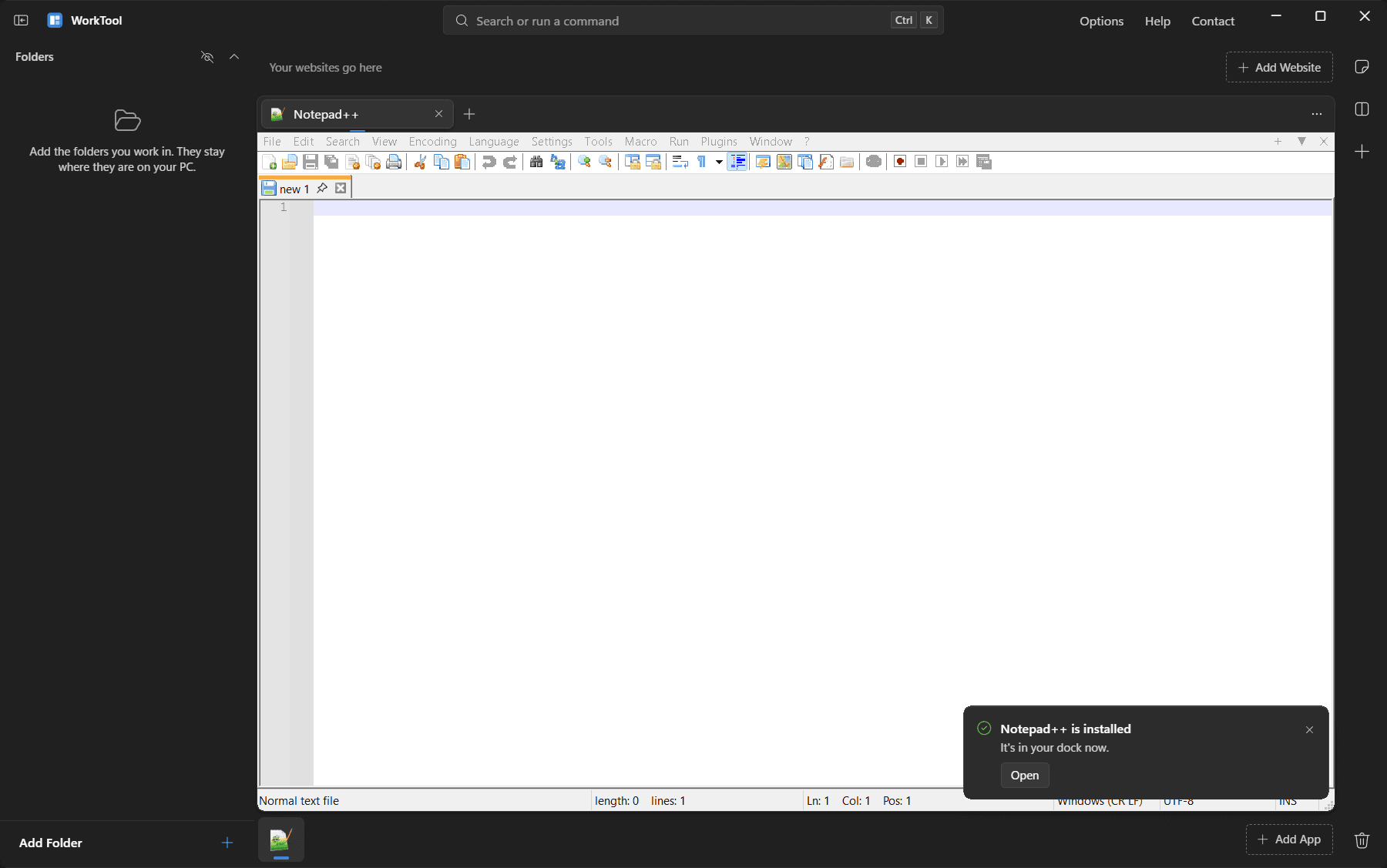
Problem one: classic apps turned invisible
WorkTool's window is transparent so Windows 11's Mica material can show through. Classic Windows programs draw with an old graphics system that doesn't write transparency at all. Drawn straight into WorkTool's window, Character Map came out fully transparent.
The fix is the host window mentioned above. It is a layered window, which gets its own opaque surface, so the classic app draws onto something solid. Windows only allows layered child windows for programs that declare Windows 8 or later in their manifest, so WorkTool ships a manifest that does.
Problem two: menus behind websites and apps
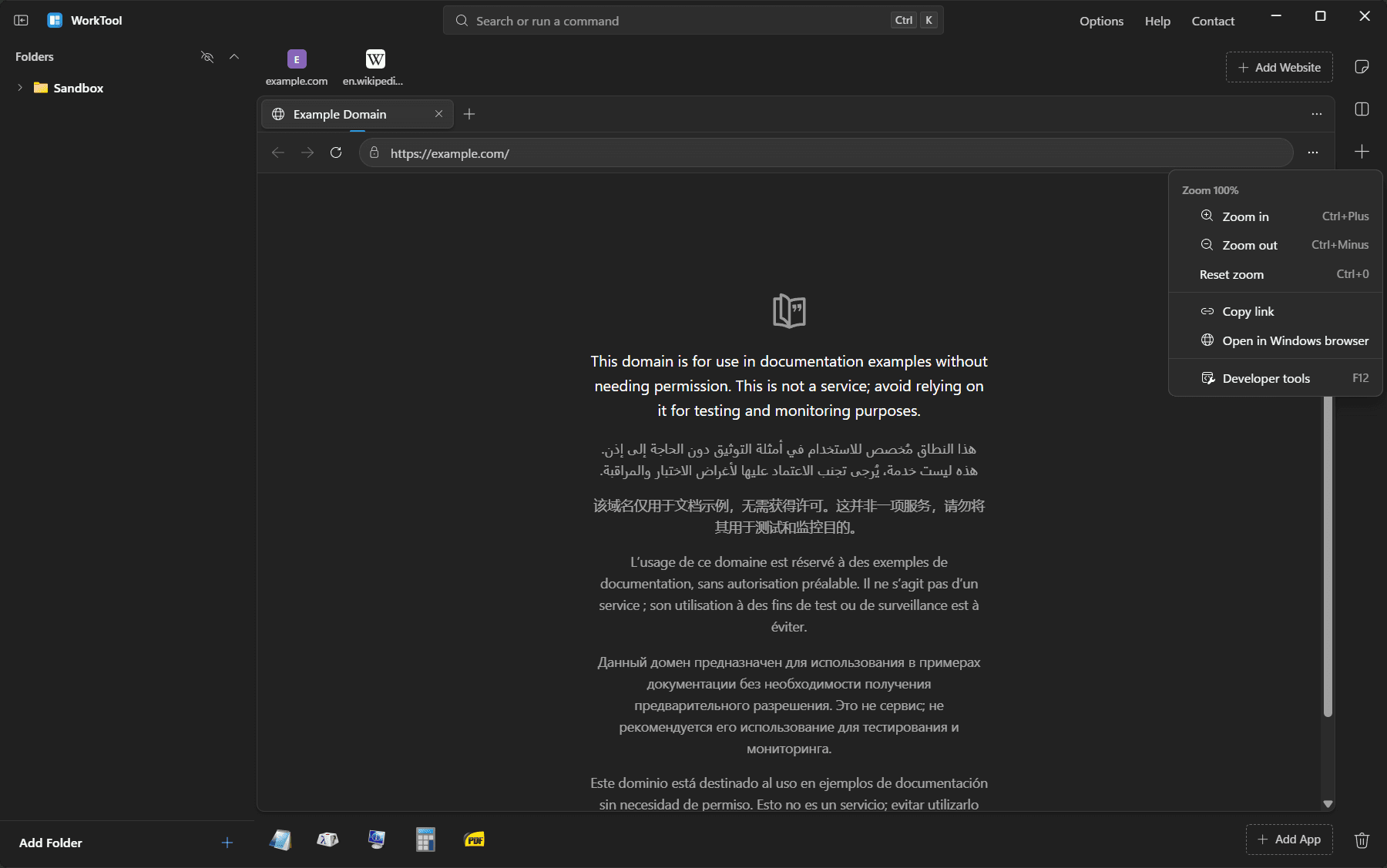
WorkTool's interface (menus, the command palette, toasts) is a web page rendered by WebView2. Websites and embedded apps are separate native windows placed above that page. A menu opened by the interface would end up behind the app it was supposed to cover.
When a menu or popover opens, the interface reports its position and shape, and WorkTool cuts that shape out of every native window with SetWindowRgn. The menu shows through the hole, while the rest of the website or app stays live. Dialogs that dim the whole window hide the native views for as long as they're open, because a dim layer can't be cut that way.
Problem three: notes above everything
Floating notes have the same problem in a stronger form: they have to stay above embedded apps no matter what. CSS can't do that, because the apps aren't part of the page.
So each note is a small window of its own, owned by the WorkTool window. Windows always keeps an owned window above its owner, including everything inside it. When you move WorkTool, the notes move with it.
What it can't do
Some windows can't be held at all. Microsoft Store apps and apps running as administrator stay in their own window, and some programs refuse to be moved. A separate article explains why, and the tab always says what happened instead of failing silently.