
Documentation
Written for the current alpha build. Where something is missing or limited, it says so.
Start
Getting started
Requirements, installing, and your first few minutes with WorkTool.
WorkTool is in alpha and isn't publicly available yet. This section describes how it works for testers today; the installer will be published on the downloads page with the first release.
Requirements
- Windows 10 or Windows 11, 64-bit. Windows 11 is tested; Windows 10 isn't tested yet.
- The Microsoft Edge WebView2 Runtime. Windows 11 includes it; on Windows 10 the installer downloads it if it's missing.
- No account and no administrator rights.
Installing
The installer is a small .exe that installs WorkTool for your Windows user only. It doesn't need administrator rights.
The first start
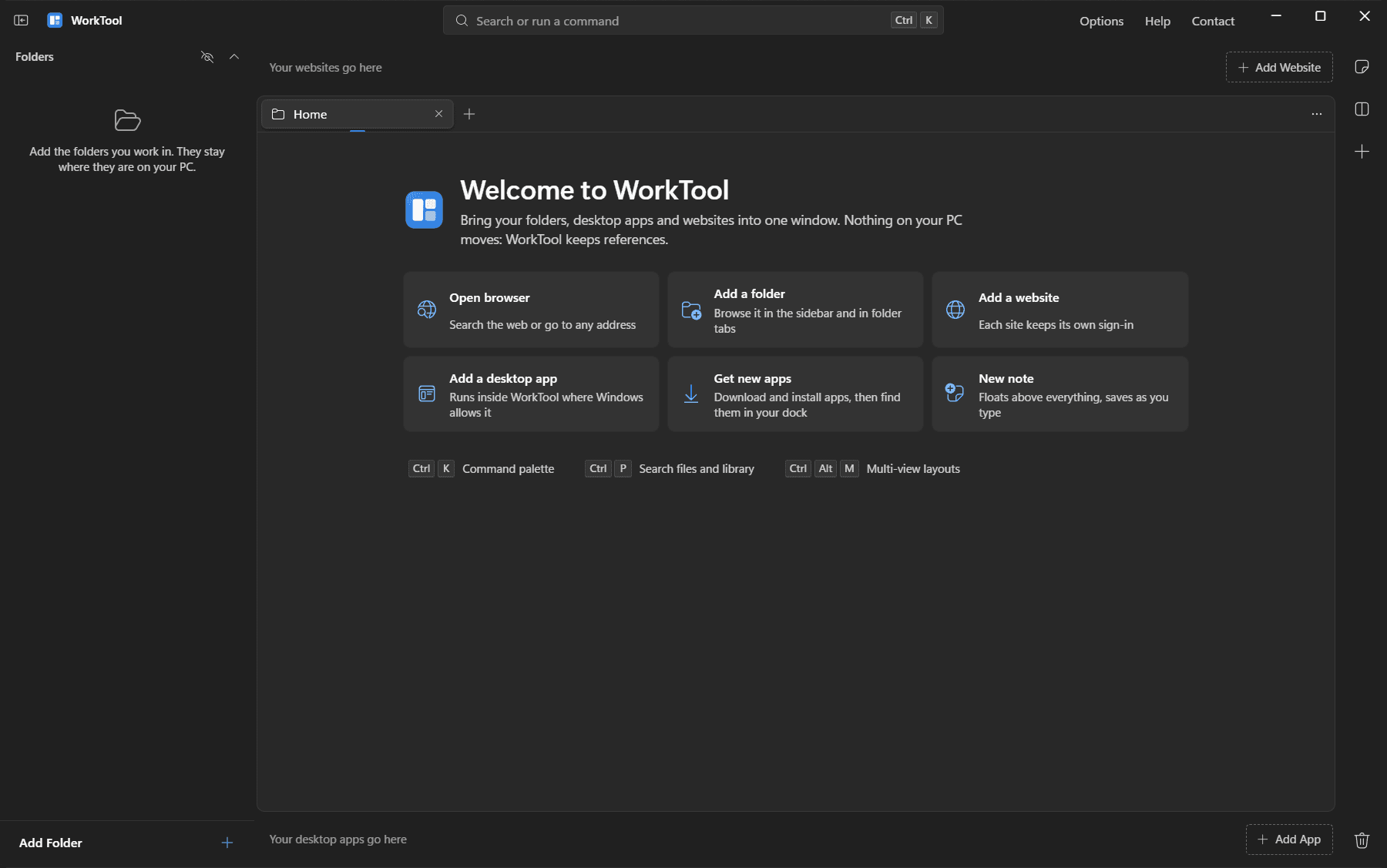
WorkTool opens on a welcome tab with six shortcuts: Open browser, Add a folder, Add a website, Add a desktop app, Get new apps and New note. Your library starts empty.
In the background, WorkTool checks that winget is available and sets up Scoop with its app catalogs, so Get new apps works right away. You can turn that off under Options > App installs.
Your first five minutes
- Add a folder you work in. It appears in the sidebar; click it to open a folder tab.
- Add a website you use every day, such as your mail. It appears in the strip along the top.
- Add a desktop app from the Start menu list, or install one under Get new apps.
- Split the view with the Multi-view button on the right edge (Ctrl+Alt+M).
- Press Ctrl+K and type a few letters: everything you added, and every action, is there.
The workspace
Sidebar, website strip, dock, tabs, panes and quick actions.
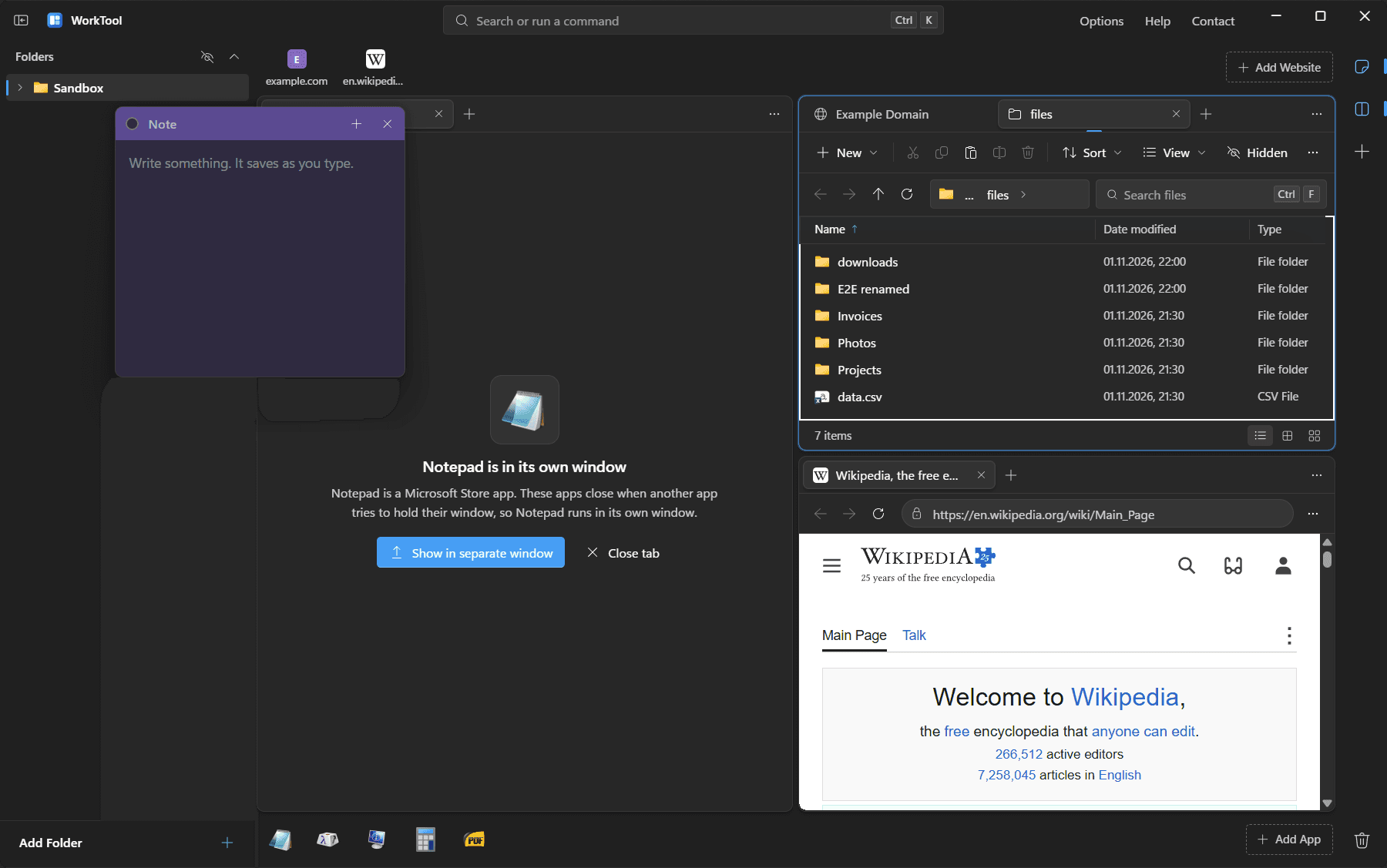
WorkTool's window has six areas. Everything you add is kept once in your library and shown in the area where it belongs.
Sidebar: folders
The folders you add, as a collapsible tree showing every file and subfolder. It refreshes when files change on disk. You can hide individual items in WorkTool, resize or collapse the sidebar (Ctrl+B), and add folders with the button at the bottom (Ctrl+Shift+O). Folders that can't be found anymore are flagged, with a way to remove them.
Website strip
Your websites along the top, each with its icon and short address. Drop one website onto another to make a group; a group opens as a small popover. Drag to reorder.
Tabs and panes
Folders, websites and apps open as tabs. Choose a layout with the Multi-view button (Ctrl+Alt+M):
- one pane,
- two side by side,
- one large pane with two stacked beside it (either side),
- four quadrants.
Each pane has its own tabs. Drag the dividers to resize panes, and drag a tab into another pane. A pane is never empty: new panes, and panes whose last tab closed, show Home.
Dock
Your desktop apps at the bottom. A marker shows which apps are running, including apps you started outside WorkTool. Groups work like in the website strip. The trash button opens the WorkTool trash.
Quick actions
On the right edge: new note, multi-view layouts, and adding things.
Title bar
The search box opens the command palette (Ctrl+K). Options, Help and Contact sit on the right, next to the window buttons.
Your workspace is saved
Open tabs, panes, layout and divider positions are saved with your library and come back when WorkTool starts. App tabs come back with a Start button.
Using WorkTool
Folders and files
Folder tabs, selection, the clipboard, the Recycle Bin and quick search.
Adding a folder only stores a reference. Nothing is moved or copied, and removing a folder from WorkTool never touches your files.
Folder tabs
A folder tab works like File Explorer:
- back, forward, up and refresh, with breadcrumbs (click the arrow next to a folder for its subfolders) and an editable path (Ctrl+L);
- search through the folder and its subfolders (Ctrl+F);
- Details, List, Tiles and Icons views, with sorting, grouping, and column choice and widths in Details;
- a status bar with item counts and the selection.
Selecting
Click, Ctrl+click to add or remove one item, Shift+click for a range, Ctrl+A for everything, or drag a rectangle. Typing the first letters of a name jumps to it.
Copy, cut and paste
Ctrl+C, Ctrl+X and Ctrl+V use the Windows clipboard in the same format File Explorer uses. You can copy in WorkTool and paste in Explorer, and the other way round. Ctrl+Shift+C copies the full path.
Dragging inside WorkTool moves files (hold Ctrl to copy). Files dropped in from File Explorer are copied or moved like in Explorer.
Dragging files out of WorkTool into File Explorer isn't supported yet. Use copy and paste instead.
Renaming, deleting and properties
- F2 renames in place.
- Delete moves to the Recycle Bin (an option in Options can ask first).
- Shift+Delete deletes permanently, only after a confirmation that lists the full path of every item.
- Alt+Enter shows Properties.
Opening files
Double-click or Enter opens a file. WorkTool asks which app to use (the apps Windows registers for that type, your dock apps, or WorkTool's own viewer for images, PDFs and text) and opens it in a tab. You can make the choice stick for a file type.
Hidden items
One toggle (Ctrl+H) shows both items you hid in WorkTool and items Windows marks as hidden or system. They show dimmed while visible.
Quick search
Ctrl+P searches your library and a background index of the files in your sidebar folders. It skips large folders that are rarely searched by name, such as node_modules, .git and $RECYCLE.BIN.
Websites and the browser
Profiles per site, sign-in popups, downloads and links from other apps.
Websites open in tabs rendered by Microsoft Edge WebView2, the same engine as Microsoft Edge.
A profile per website
Every website you add gets its own browser profile: its own cookies, storage and sign-in. Signing in to one site never affects another. A blank browser tab from Open browser uses a shared profile.
Profiles are stored in %LOCALAPPDATA%\WorkTool\Profiles. Permanently deleting a website from the WorkTool trash also deletes its profile.
Adding a website
Type an address (a short one like example.org works). WorkTool fetches the site's name and icon for the strip.
In a website tab
- back, forward, reload and an address bar that searches the web if you don't type an address;
- zoom (Ctrl+Plus, Ctrl+Minus, Ctrl+0), copy link, open in your Windows browser, and developer tools (F12);
- a clear message when a site can't be reached, with Try again and Open in Windows browser.
Sign-in popups and new windows
When a site opens a sized popup, such as a Google or Microsoft sign-in, WorkTool opens it as a small window that shares the site's profile, so the sign-in completes in the original tab. Links that ask for a new window open as a new tab in the same pane.
The popup mechanism is tested; real Google and Microsoft sign-ins with accounts haven't been tested yet.
Downloads
Downloads go to your Downloads folder (you can choose another one in Options), with a unique name if the file already exists. A notification offers Open and Show in folder.
WorkTool as your browser
WorkTool can register itself as a browser in Windows, so it appears under Settings > Apps > Default apps. Choosing it as the default is your decision in Windows Settings. Under Options > Browser and links, you choose whether links from other apps open in WorkTool's built-in browser or in your Windows default browser, and you can unregister WorkTool again.
Memory
Each open website runs in its own browser process, roughly 100 to 200 MB while its tab is open. Closing the tab frees it.
Desktop apps
How apps run inside WorkTool, closing them, and the ones that can't be held.
Desktop apps in the dock open inside WorkTool's tabs. WorkTool starts the app, finds the window it opened, removes its title bar and places it in the pane.
Adding apps
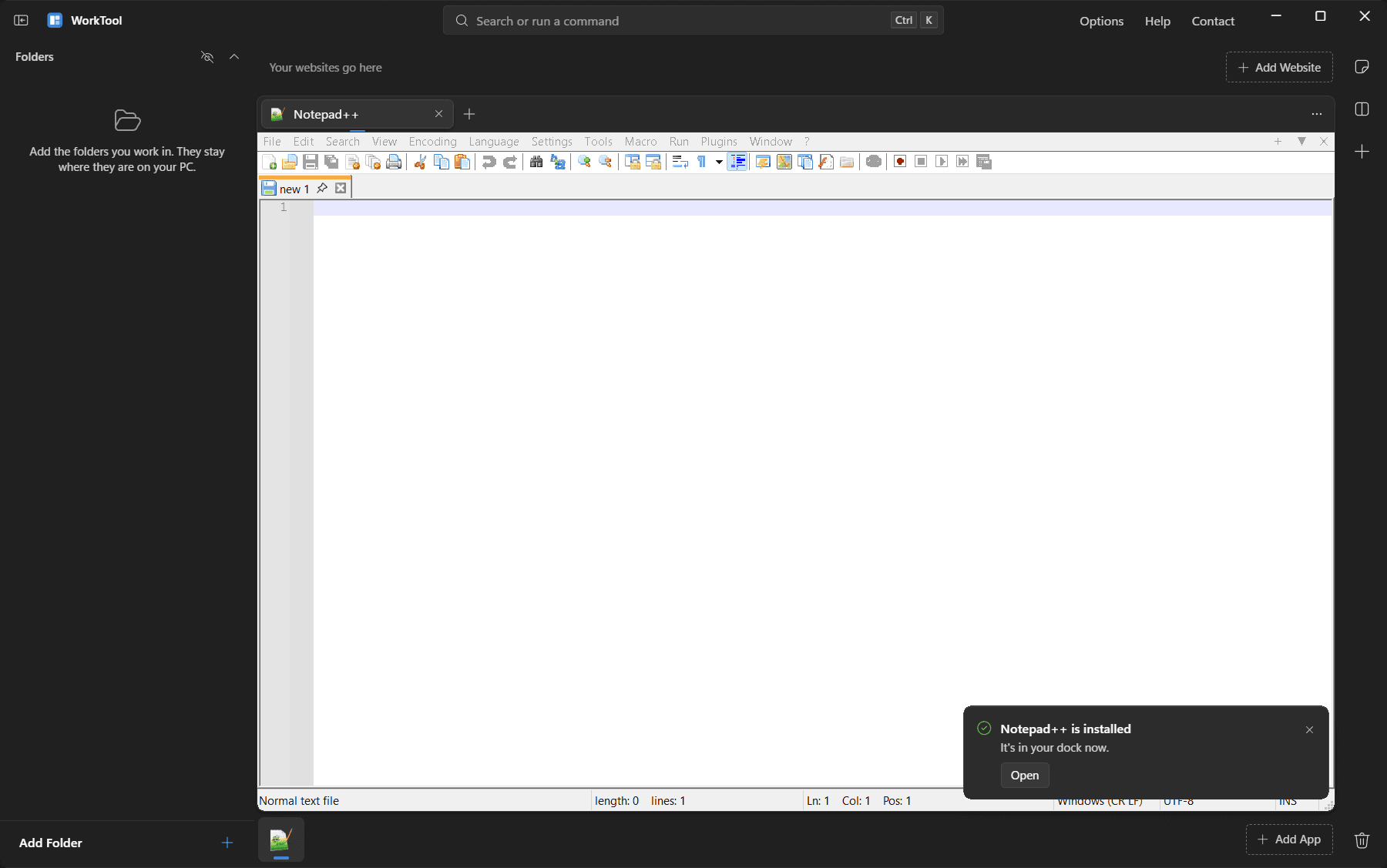
From Add app: the Start menu's app list, the apps running right now, a program file you pick, or Get new apps.
Opening
Clicking an app in the dock goes to its tab if it's open, brings in its window if it's running outside WorkTool, and starts it otherwise. Middle-click starts another instance.
Closing
Closing an app's tab closes the app:
- WorkTool sends the normal close request first, as if you clicked the app's close button.
- If the app only hides itself in the tray, WorkTool ends it, together with the processes it started.
- If the app asks a question first, such as "Save changes?", it moves to its own window so you can answer.
- If the app still has other windows open, it keeps running.
Show in separate window (in the tab's menu) moves an app out of WorkTool and keeps it running. Removing an open app from WorkTool closes its tab the same way as closing it; the app stays installed.
When you quit WorkTool, every app it was holding is handed back to the desktop with its frame and size. Quitting WorkTool never closes another app.
When an app hides itself
If an app's own close button sends it to the tray while its tab is open, the tab says so and offers Show or Close. If its window closed but the program keeps running without one, the tab offers Close or Leave it running.
Apps that can't be held
Some apps always run in their own window, and the tab says why:
- Microsoft Store apps, such as the Windows 11 Notepad, Paint, Calculator and Terminal. Windows doesn't let other apps hold them, and some crash if tried.
- Apps running as administrator, unless WorkTool also runs as administrator.
- Apps that refuse to be moved into another window.
Good to know
- While WorkTool is in front, Ctrl+K, Ctrl+P, Ctrl+Alt+N and Ctrl+Alt+M go to WorkTool even if an app inside uses them.
- Apps that don't support display scaling render at 100% inside WorkTool on a scaled display.
- A frozen app can make WorkTool feel slow until it recovers, because Windows shares input between a window and the window holding it.
- If WorkTool itself is ended from Task Manager, Windows closes the apps it was holding.
Getting new apps
Installing and uninstalling through winget and Scoop.
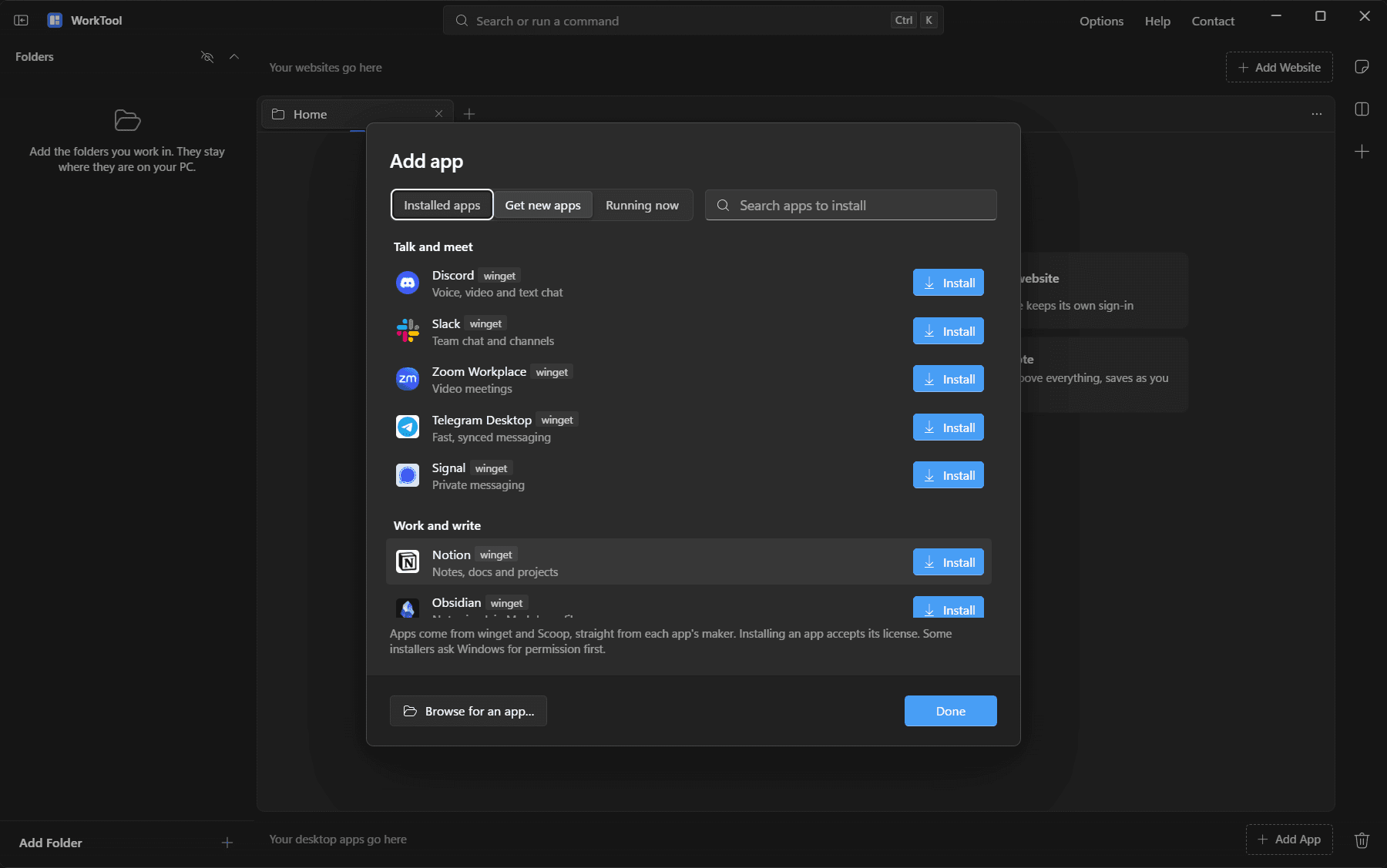
Add app > Get new apps installs apps through two package managers and puts them in your dock. It's also on Home and in the command palette.
Sources
- winget: Microsoft's package manager, part of Windows 10 and 11. WorkTool uses its community catalog. Apps are downloaded from their makers and checked against a published checksum.
- Scoop: portable apps installed into your user folder, without administrator rights. WorkTool lists only Scoop apps with a Start menu shortcut, about 2,000 desktop apps from the Main and Extras catalogs. Command-line tools are left out.
Installing
Search, or pick from the popular apps, and click Install. Progress shows in the row and an install can be cancelled. When it's done, the app is in your dock (or in the group chosen under "Place in"), and a notification offers to open it.
If an app is already installed, its row offers Add to dock and Uninstall instead.
Installing an app accepts its license. Installers that need administrator rights show the Windows permission prompt.
Automatic setup
When WorkTool starts, it:
- checks that winget works, and if Windows has it but it isn't turned on for your account, runs Microsoft's documented fix (registering the App Installer package Windows already has);
- sets up Scoop in its standard folder (
%USERPROFILE%\scoop) with the Main and Extras catalogs, downloaded as zip archives from Scoop's GitHub organization, if there's no Scoop yet.
Options > App installs shows the status of both, refreshes the catalogs, and turns automatic setup off. Catalogs WorkTool set up are refreshed weekly. A Scoop you installed yourself is never replaced.
WorkTool doesn't add Scoop to your PATH. Apps reach the dock and Start menu without it. If you want the scoop command in a terminal, run Scoop's own installer, which adds it.
If winget is missing
On a PC without App Installer, the tab says so and points to App Installer in the Microsoft Store.
Notes, search and shortcuts
Floating notes, the command palette, quick search and every shortcut.
Notes
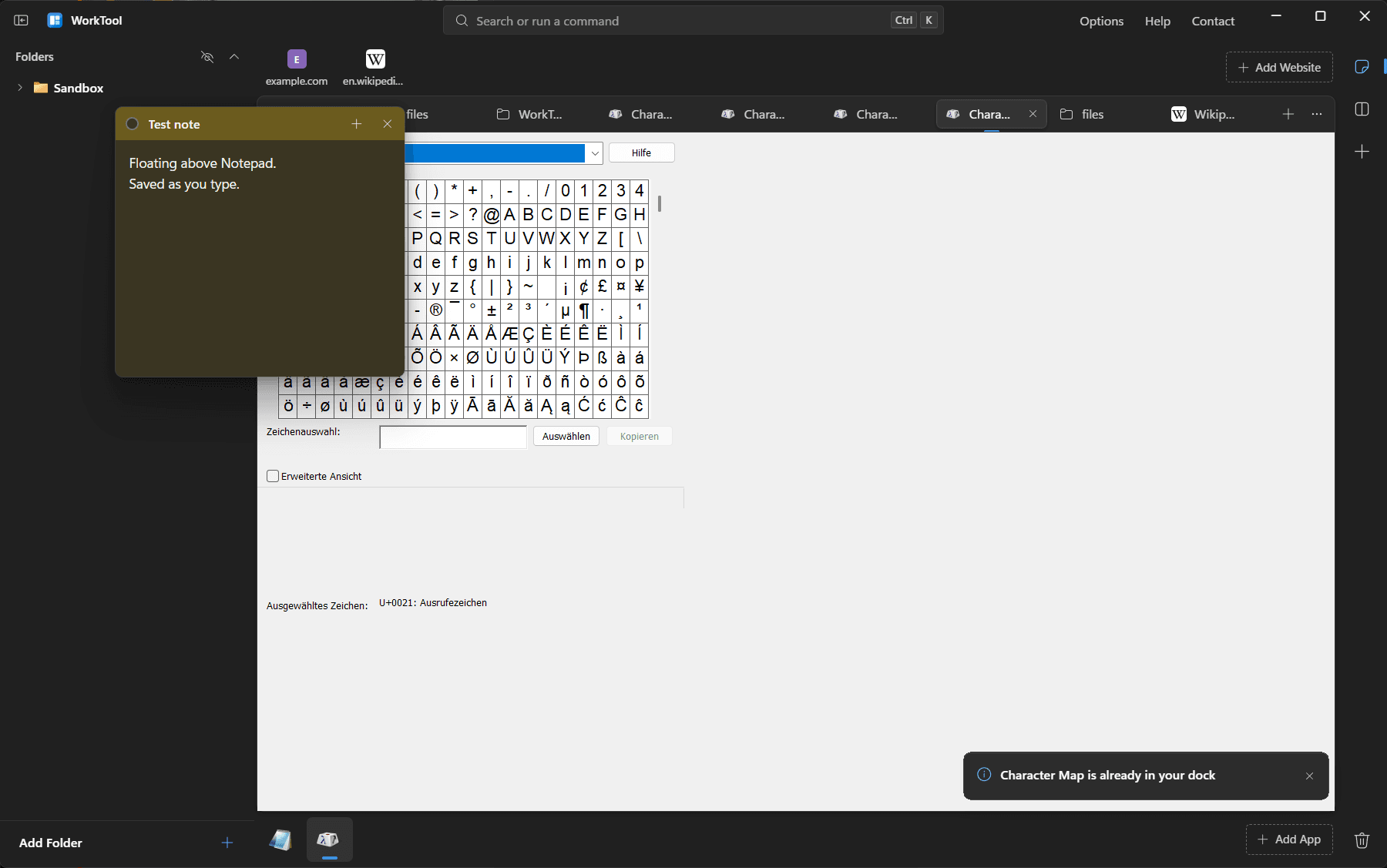
Notes are small windows that float above WorkTool, including the apps and websites inside it.
- New note: Ctrl+Alt+N, the note button on the right edge, or New note on Home.
- Writing: the text, title, color, position and size save as you go.
- Moving: drag the note's bar. Notes follow the WorkTool window when you move it and hide when it's minimized.
- Closing keeps the note's text; open it again from the notes list. Removing a note moves it to the WorkTool trash.
- Notes follow WorkTool's theme.
Command palette
Ctrl+K opens the command palette. It finds your websites, apps, folders and open tabs, and every action: layouts, themes, adding things, the trash, Options. Use the arrow keys and Enter, or Ctrl+Enter to open in a new tab.
Quick search
Ctrl+P searches your library and an index of every file in your sidebar folders, by name.
Both work while an app or website inside WorkTool has the keyboard.
All shortcuts
Everywhere
| Ctrl+K | Command palette: open anything, run any action |
| Ctrl+P | Quick search across your folders and library |
| Ctrl+Alt+N | New note |
| Ctrl+Alt+M | Multi-view layouts |
| Ctrl+B | Show or hide the folders panel |
| Ctrl+H | Show or hide hidden items |
| Ctrl+Shift+O | Add a folder |
| Ctrl+, | Options |
| F1 | Help |
Tabs and panes
| Ctrl+T | New tab |
| Ctrl+W | Close tab |
| Ctrl+Shift+T | Reopen closed tab |
| Ctrl+Tab | Next tab |
| Ctrl+Shift+Tab | Previous tab |
| Ctrl+1 … 9 | Go to tab 1 to 9 |
| Ctrl+Alt+Left/Right | Move focus to the previous or next pane |
Folder view
| Enter | Open |
| Ctrl+Enter | Open folder in new tab |
| Backspace / Alt+Left | Back |
| Alt+Right | Forward |
| Alt+Up | Up to the parent folder |
| Ctrl+C / Ctrl+X / Ctrl+V | Copy, cut, paste (works with File Explorer) |
| Ctrl+Shift+C | Copy as path |
| F2 | Rename |
| Delete | Move to Recycle Bin |
| Shift+Delete | Delete permanently (asks first) |
| Ctrl+A | Select all |
| Shift+Click / Ctrl+Click | Select a range / add or remove one item |
| Ctrl+Shift+N | New folder |
| Ctrl+F | Search this folder |
| Ctrl+L | Type a path |
| Alt+Enter | Properties |
| F5 | Refresh |
Websites
| Alt+Left / Alt+Right | Back / forward |
| F5 | Reload |
| Ctrl+Plus / Ctrl+Minus | Zoom |
Reference
Your data
What WorkTool stores, where, and what it connects to.
WorkTool has no account and no WorkTool server. Everything it keeps is in files on your PC.
What's stored, and where
| What | Where |
| --- | --- |
| Your library: folders, websites and apps you added, groups, notes, the WorkTool trash, and the saved workspace | %APPDATA%\WorkTool\library.json |
| Settings | %APPDATA%\WorkTool\config.json |
| Website profiles: cookies, storage and sign-ins, one folder per website | %LOCALAPPDATA%\WorkTool\Profiles |
| Scoop and the apps installed through it | %USERPROFILE%\scoop |
Saves are atomic: WorkTool writes a new file and swaps it in, keeping the previous version as a .bak. If the library file is damaged, it's set aside and the backup is loaded, and WorkTool tells you.
What WorkTool connects to
WorkTool sends no usage data or crash reports. It connects to the internet only for:
- the websites you open, like any browser;
- fetching a website's name and icon when you add it, and icons for popular apps in Get new apps;
- installing, uninstalling and finding apps through winget and Scoop, and refreshing Scoop's catalogs from GitHub.
What WorkTool changes on your PC
- Your files: only when you tell it to (rename, move, delete). Removing things from WorkTool never touches files.
- The registry: only if you register WorkTool as a browser, under your user account, and Unregister removes those entries again.
- Apps: only the ones you install or uninstall through Get new apps.
Removing your data
Delete the folders above to remove WorkTool's data. Website profiles are also deleted one by one when you permanently delete a website from the WorkTool trash.
Known limitations
Everything that doesn't work yet or works with limits, and why.
Everything that doesn't work yet, or works with limits, in the current alpha build.
Platform
- Windows 10 is built for but hasn't been tested. WorkTool uses solid colors instead of Mica there.
- macOS and Linux aren't supported. WorkTool is built on Windows features.
Apps inside WorkTool
- Microsoft Store apps run in their own window. Windows doesn't let other apps hold them, and the Windows 11 Notepad crashed when tried. See why.
- Apps running as administrator run in their own window unless WorkTool also runs as administrator. Not tested live.
- Some apps refuse to be moved into another window; they get the same fallback.
- Apps that don't support display scaling render at 100% inside WorkTool on a scaled display.
- A frozen app can make WorkTool slow to respond until it recovers.
- If WorkTool is ended from Task Manager, Windows closes the apps it was holding. A normal quit hands them back.
- Closing an app's tab ends apps that hide to the tray on purpose too, such as music that keeps playing. Show in separate window keeps an app running.
Websites
- Real Google and Microsoft sign-ins haven't been tested with accounts. The popup mechanism they use has.
- Each open website uses its own browser process, roughly 100 to 200 MB of memory.
- Dialogs that dim the window hide websites and apps while they're open. Menus, popovers and the palette keep them live.
Files
- Dragging files out of WorkTool into File Explorer isn't supported. Copy and paste works in both directions.
Window and keyboard
- No snap layouts menu on the maximize button. Snapping by dragging to the screen edge, double-click to maximize, Win+Arrow and Win+Z work.
- Ctrl+K, Ctrl+P, Ctrl+Alt+N and Ctrl+Alt+M always go to WorkTool while it's in front, even if an app inside uses them.
Getting new apps
- Installers that need administrator rights show the Windows permission prompt, and the install waits for your answer.
- Progress shows stages, not an exact download percentage.
- Turning winget on for an account where it's off is implemented but hasn't been tested.
- Scoop isn't added to PATH.