
Everything WorkTool does today
Every feature on this page is in the current alpha build and was written from the app itself. Where something doesn’t work yet, it says so.
One window for everything you work with
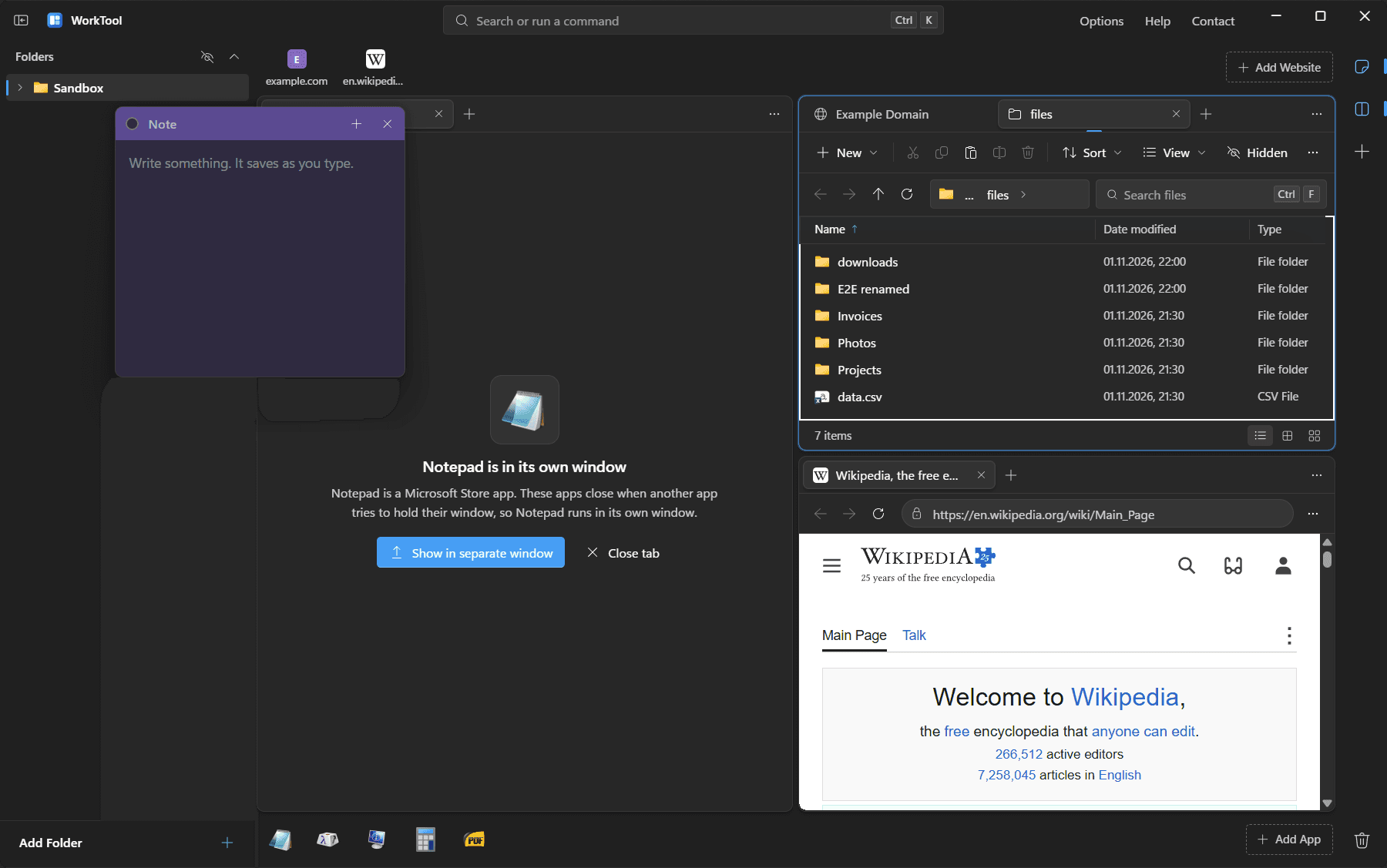
WorkTool is a Windows app that gathers the folders, websites and desktop apps you use every day into one window. Each thing you add is kept once in your library and shows up where it belongs: folders in the sidebar, websites in the strip, apps in the dock.
- 1Add a folder, a website or an app from Home, from the + buttons, or with Ctrl+K.
- 2Click it to open it in a tab. Tabs from different kinds sit side by side.
- 3Group related icons by dropping one onto another; a group opens as a small popover.
- 4Close WorkTool and start it again: your tabs, panes and layout come back.
- The problem
- A normal working day spreads across File Explorer windows, a browser full of tabs and a row of separate apps. Finding the right window takes time, and the arrangement is gone when you restart.
- Why it matters
- Everything for a task is one click away in the same window, and the workspace survives a restart.
Folders that work like File Explorer
Folders you add appear as a tree in the sidebar and open in folder tabs that behave like File Explorer: breadcrumbs, back and forward, search through subfolders, and Details, List, Tiles and Icons views.
- The problem
- Switching between a file manager and the apps that use the files breaks concentration, and a second file manager that behaves differently is worse.
- Why it matters
- Your files stay exactly where they are on your PC. WorkTool only keeps references to the folders you add.
How it works
- 1Sort, group and choose columns in Details view; select with click, Ctrl+click, Shift+click or Ctrl+A.
- 2Copy, cut and paste with Ctrl+C, Ctrl+X and Ctrl+V. It uses the Windows clipboard, so it works with File Explorer in both directions.
- 3Rename with F2, delete to the Recycle Bin with Delete, and see Properties.
- 4Drop files in from File Explorer; drag inside WorkTool to move (hold Ctrl to copy).
Also: Hidden items can be shown or hidden with one toggle
Also: Ctrl+P searches a background index of the files in your sidebar folders
Not there yet
- Dragging files out of WorkTool into File Explorer isn't supported yet. Copy and paste works both ways.
Websites with their own sign-in
Websites open in tabs inside WorkTool, rendered by Microsoft Edge WebView2. Each website you add gets its own browser profile, so its cookies and sign-in never mix with another site's.
- The problem
- Web apps for mail, calendars and team tools live in one crowded browser window, mixed in with everything else you have open.
- Why it matters
- Your web tools sit next to your files and apps, and staying signed in to one site never affects another.
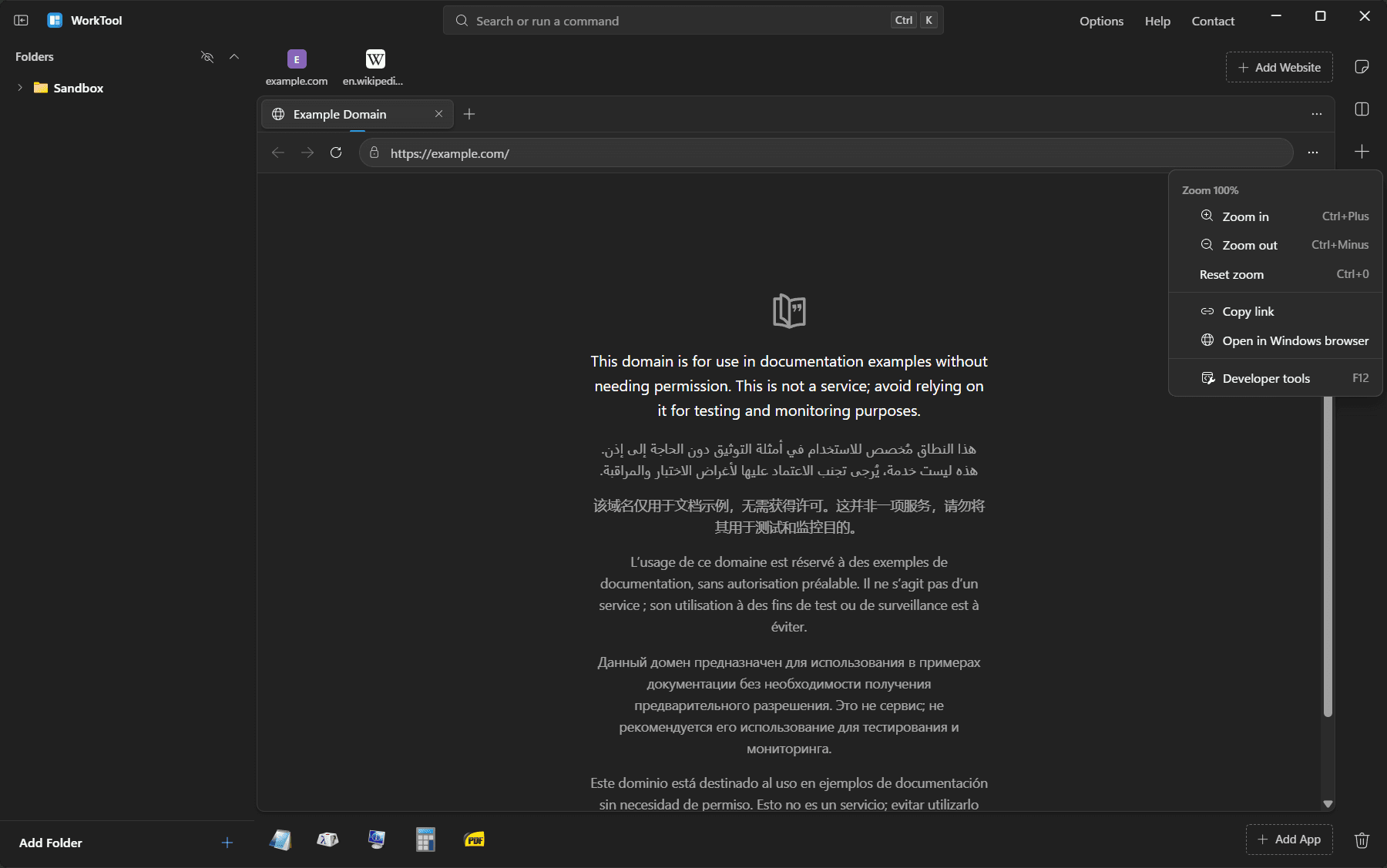
- 1Add a website and WorkTool fetches its name and icon for the strip.
- 2Open it in a tab with back, forward, reload, zoom and an address bar that also searches.
- 3Sign-in popups (for example Google or Microsoft sign-in) open as small windows that share the site's profile.
- 4Downloads go to your Downloads folder, with Open and Show in folder.
Also: Open browser on Home starts a blank browser tab for anything else
Also: WorkTool can be registered as a browser in Windows, and you choose where outside links open
Not there yet
- Each open website uses its own browser process, roughly 100 to 200 MB of memory while its tab is open.
Desktop apps inside the window
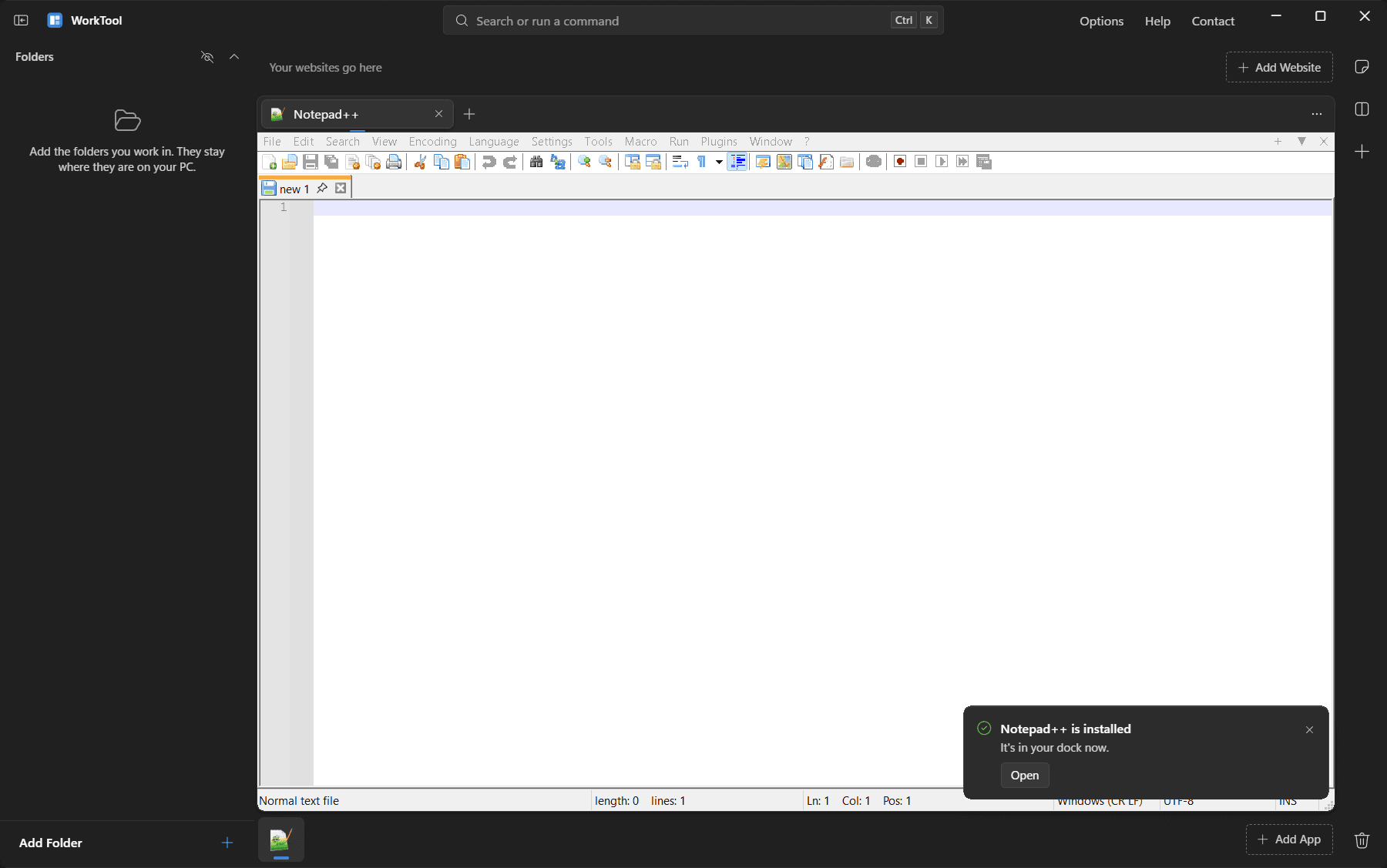
Apps in the dock open in a tab. WorkTool starts the app, finds its window and places it inside its own window, sized to the pane. Apps you started outside WorkTool show as running too, and clicking them brings their window in.
- 1Add an app from the Start menu list, from running windows, or by picking a program file.
- 2Click it in the dock: WorkTool starts it and shows it in a tab.
- 3Close the tab and the app closes for good, including apps that would otherwise hide in the tray.
- 4If an app asks "Save changes?" first, it moves to its own window so you can answer.
Not there yet
- Microsoft Store apps (such as Windows 11 Notepad and Calculator) run in their own window. Windows doesn't let other apps hold them, and some crash if tried.
- Apps running as administrator also stay in their own window.
- Some apps refuse to be moved; WorkTool then offers to show them in their own window.
- The problem
- Desktop apps each open their own window, and keeping them arranged next to your files and websites is manual work every time.
- Why it matters
- The apps you use for a task live in the same workspace as everything else, and closing a tab doesn't leave anything running in Task Manager.
Split views for side-by-side work
Every pane has its own row of tabs. Choose one pane, two side by side, one large pane with two stacked beside it, or four quadrants.
- 1Pick a layout from the Multi-view button or with Ctrl+Alt+M.
- 2Drag the dividers to resize panes.
- 3Drag a tab from one pane into another.
- 4New panes start with Home, so none is ever empty.
- The problem
- Comparing a file with a web page, or keeping notes next to an app, means juggling windows by hand.
- Why it matters
- Related things stay visible at the same time, and the layout is saved with your workspace.
Notes that float above everything
Notes are small windows of their own that always stay above the WorkTool window, including the apps and websites inside it. They follow the WorkTool window when you move it.
- The problem
- Quick notes end up in a separate app or on paper, out of sight while you work.
- Why it matters
- Your reminders stay visible next to the work they're about.
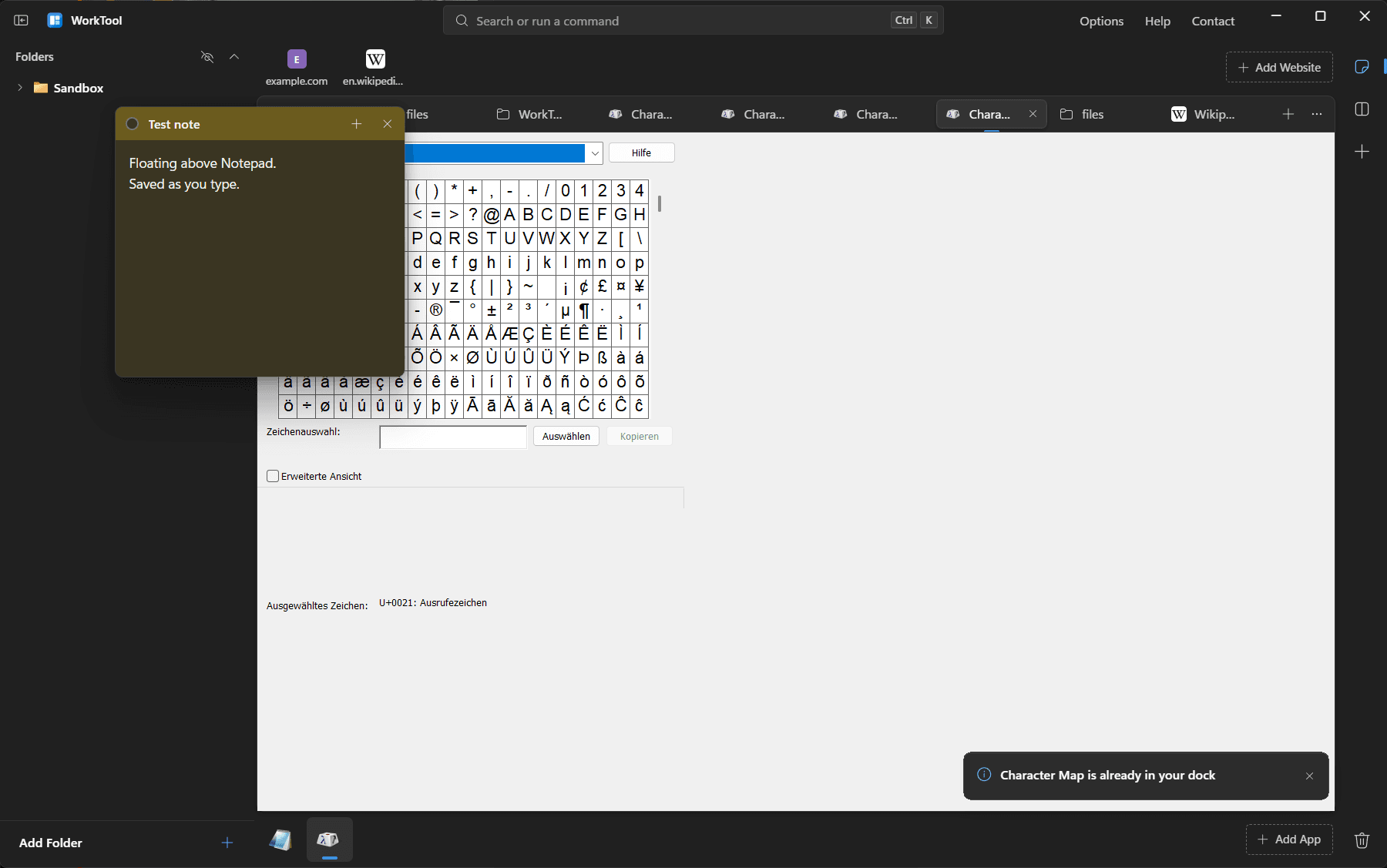
- 1Create a note with Ctrl+Alt+N or the note button.
- 2Type: the text saves as you write.
- 3Change its color, move it, or close it; closed notes keep their text.
- 4Removed notes go to the WorkTool trash.
Keyboard-first: command palette and quick search
The command palette finds websites, apps, folders, open tabs and every action. Quick search also looks through an index of the files in your sidebar folders.
- The problem
- Clicking through menus and folder trees is slow when you already know what you want.
- Why it matters
- Anything in your workspace is a few keystrokes away. The shortcuts also work while an app or website inside WorkTool has focus.
How it works
- 1Press Ctrl+K and type a few letters.
- 2Use the arrow keys and Enter, or Ctrl+Enter to open in a new tab.
- 3Press Ctrl+P to search files by name.
Not there yet
- While WorkTool is in front, Ctrl+K, Ctrl+P, Ctrl+Alt+N and Ctrl+Alt+M always go to WorkTool, even if an app inside uses them.
Install new apps without leaving WorkTool
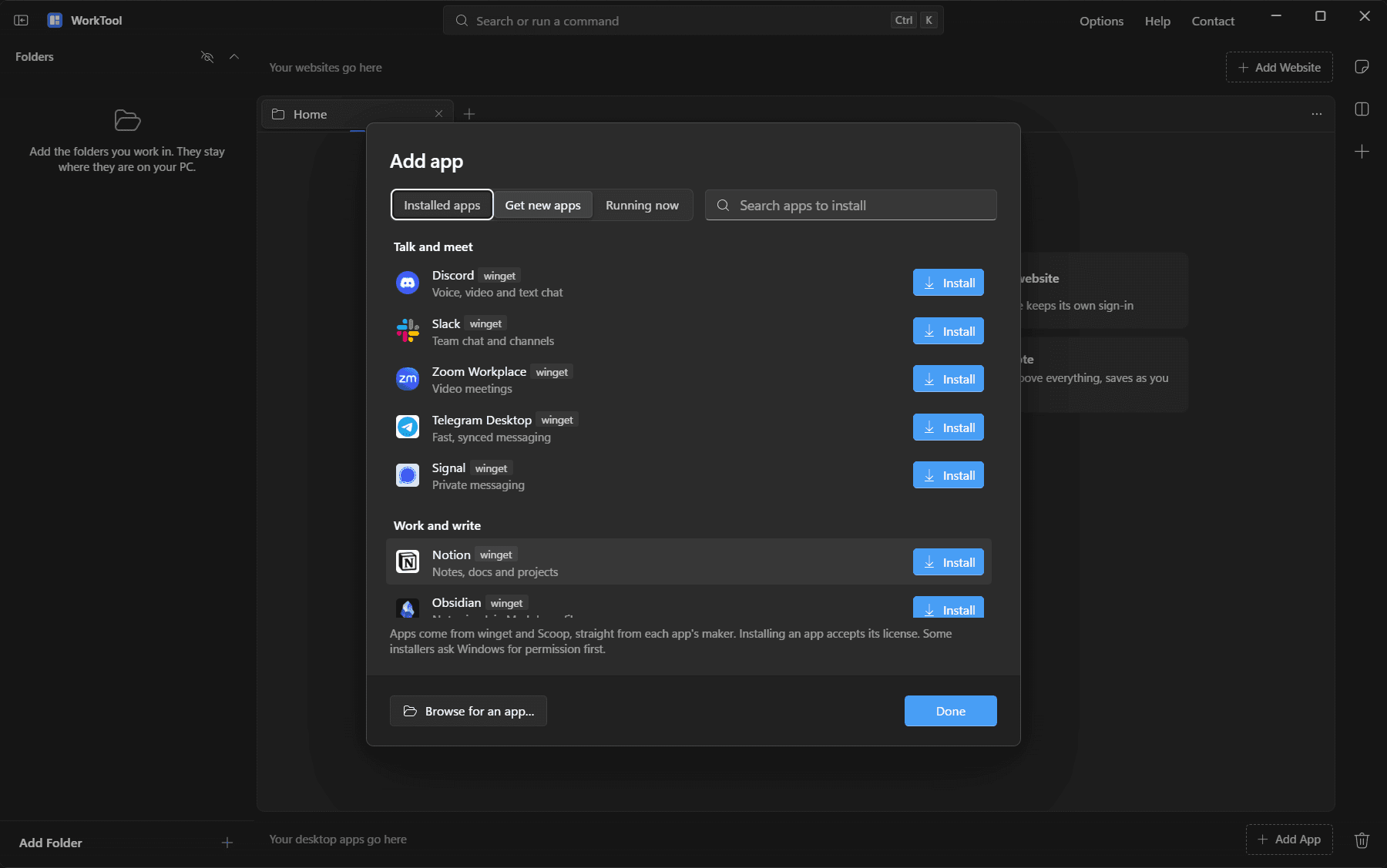
Add app has a Get new apps tab with popular apps and a search across winget (Microsoft's package manager) and Scoop (portable apps that need no administrator rights). Installs show progress, can be cancelled, and put the app straight into your dock.
- 1Open Add app and choose Get new apps, or pick it on Home.
- 2Browse popular apps or search; results from winget and Scoop are listed separately.
- 3Install: downloads come from each app's maker, and their checksums are verified.
- 4The app appears in your dock. Already installed apps get Add to dock and Uninstall.
Also: WorkTool checks winget and sets up Scoop by itself when it starts. You can turn that off in Options.
Not there yet
- Installers that need administrator rights show the Windows permission prompt.
- Progress shows stages rather than an exact percentage.
- The problem
- Installing a tool means finding the right website, the right download and the right installer, then adding it to your setup by hand.
- Why it matters
- Getting the tools you need takes one search, and they're ready in your workspace right away.
Removing never touches your files
Removing a folder, website or app from WorkTool only removes WorkTool's reference and puts it in the WorkTool trash, where you can restore it. Deleting files from your PC is a separate command that uses the Recycle Bin.
- The problem
- Tools that mix up "remove from this list" and "delete the file" make people afraid to tidy up.
- Why it matters
- You can reorganize your workspace freely without risking anything on your PC.
How it works
- 1Remove from WorkTool: the item goes to the WorkTool trash. Undo is offered right away.
- 2Remove from computer: files go to the Windows Recycle Bin.
- 3Delete permanently always asks first and shows the full path of every item.
Built for Windows 11
WorkTool follows Windows 11's design: the Mica backdrop, Fluent UI System Icons, Segoe UI Variable, and dark, light or follow-Windows themes with a choice of accent color.
- The problem
- Tools that look like web pages feel out of place among the rest of Windows.
- Why it matters
- WorkTool feels like part of Windows rather than a website in a frame.
How it works
- 1Pick dark, light or follow Windows in Options.
- 2Choose an accent color, or use the Windows accent.
- 3Turn animations off, or let WorkTool follow the Windows setting.
Not there yet
- Hovering the maximize button doesn't show Windows 11's snap layouts menu. Snapping by dragging and Win+Arrow work.
Local, with no account
Everything you add, your notes and your workspace are saved in a library file in your Windows user folder (%APPDATA%\WorkTool), with a backup of the previous save. Website sign-ins are stored per site in %LOCALAPPDATA%\WorkTool.
- The problem
- Many workspace tools require an account and keep your setup on someone else's server.
- Why it matters
- Your setup belongs to you, works offline for local files and apps, and isn't sent anywhere.
How it works
- 1Start WorkTool; there is nothing to sign up for.
- 2Saves happen automatically and atomically, keeping the previous version as a backup.
- 3A damaged library file is set aside and the backup is loaded.
Also: WorkTool connects to the internet for the websites you open, website icons, and app installs and catalog updates.
What WorkTool can’t do yet
The full list of known limitations, with the reasons behind them, is in the documentation.
Known limitations- Windows only: Windows 11 is tested, Windows 10 is built for but not tested yet.
- Microsoft Store apps and apps running as administrator open in their own window.
- Dragging files out of WorkTool into File Explorer isn't supported yet.
- No snap layouts menu on the maximize button.
- Real Google and Microsoft sign-ins haven't been tested yet (the popup mechanism they use has).
Looking for how these fit together in a day’s work? See how it works and the use cases.