
From first start to a full workspace
The whole WorkTool experience in six steps, as the current alpha works on Windows 11.
- 1
Get WorkTool
WorkTool installs per user with a small installer, without administrator rights, and needs Windows 10 or 11 with the Microsoft Edge WebView2 Runtime (Windows 11 has it built in).
Public downloads aren’t open yet. WorkTool is in alpha testing; the installer will be published with the first release.
Downloads are not available yet. WorkTool is in alpha testing. Public downloads will open when the first release is ready. - 2
First start
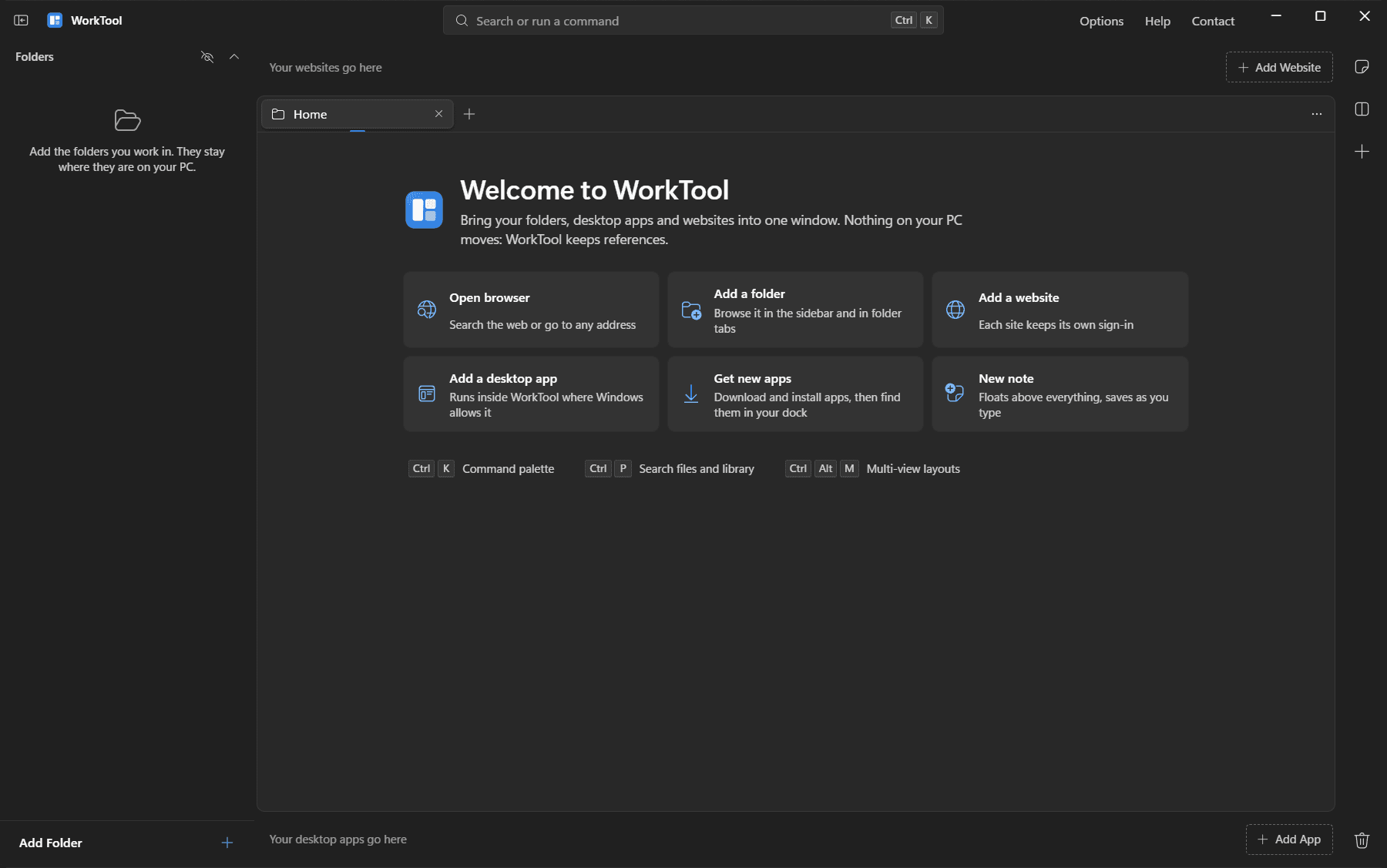
WorkTool opens on a welcome tab with the six things you’ll most likely want first. There’s no account to create. In the background it checks that winget is available and sets up Scoop, so installing apps from inside WorkTool works right away. Your library starts empty and is saved in your Windows user folder.
- 3
Add what you work with
- Folders: pick a folder with the Windows folder picker. It appears in the sidebar as a tree and stays where it is on your PC.
- Websites: type an address. WorkTool fetches the name and icon and gives the site its own profile.
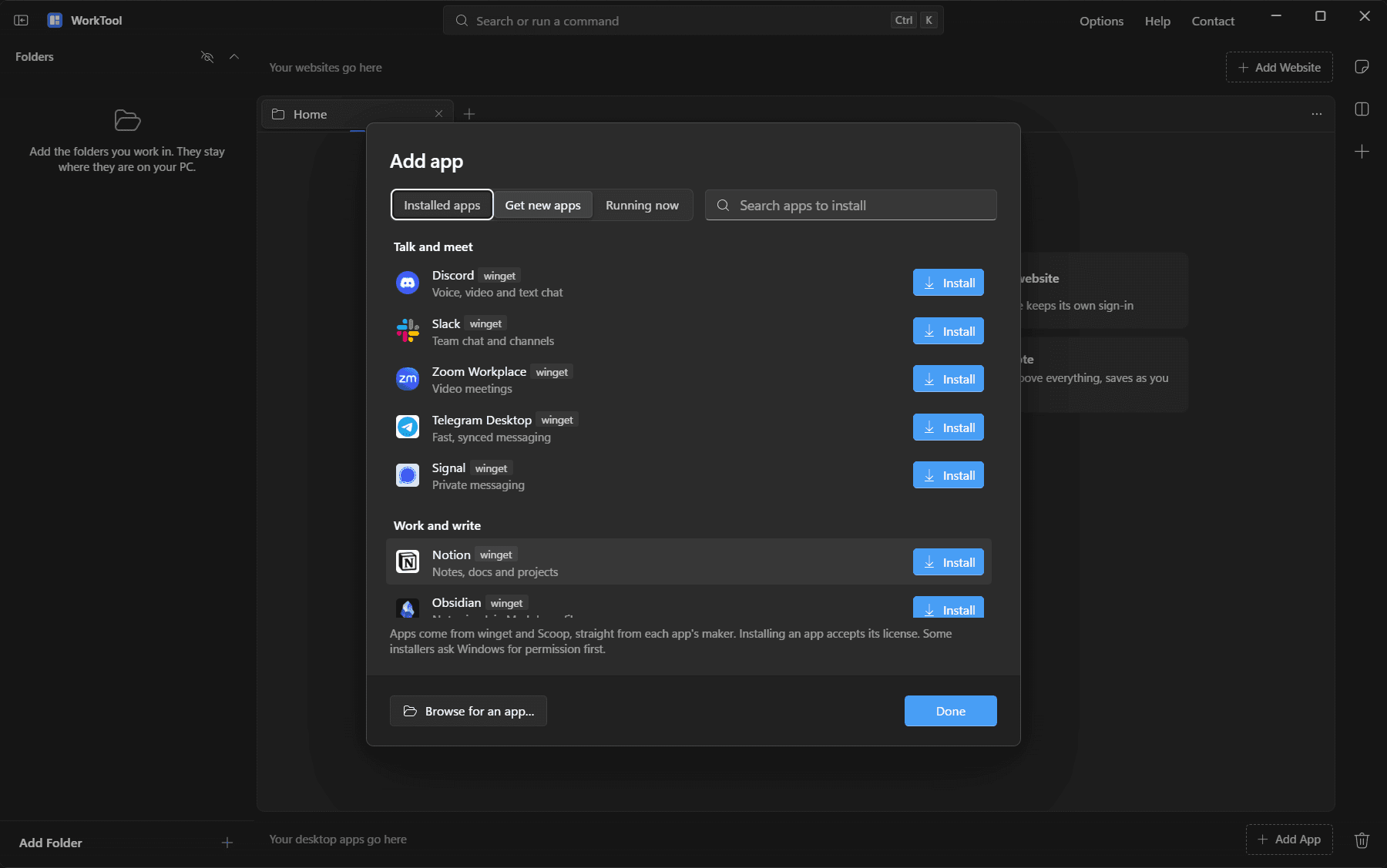
- Desktop apps: choose from your Start menu, from apps already running, or from a program file.
- New apps: search winget and Scoop under Get new apps; the app lands in your dock when it’s installed.
- 4
Open things in tabs and panes
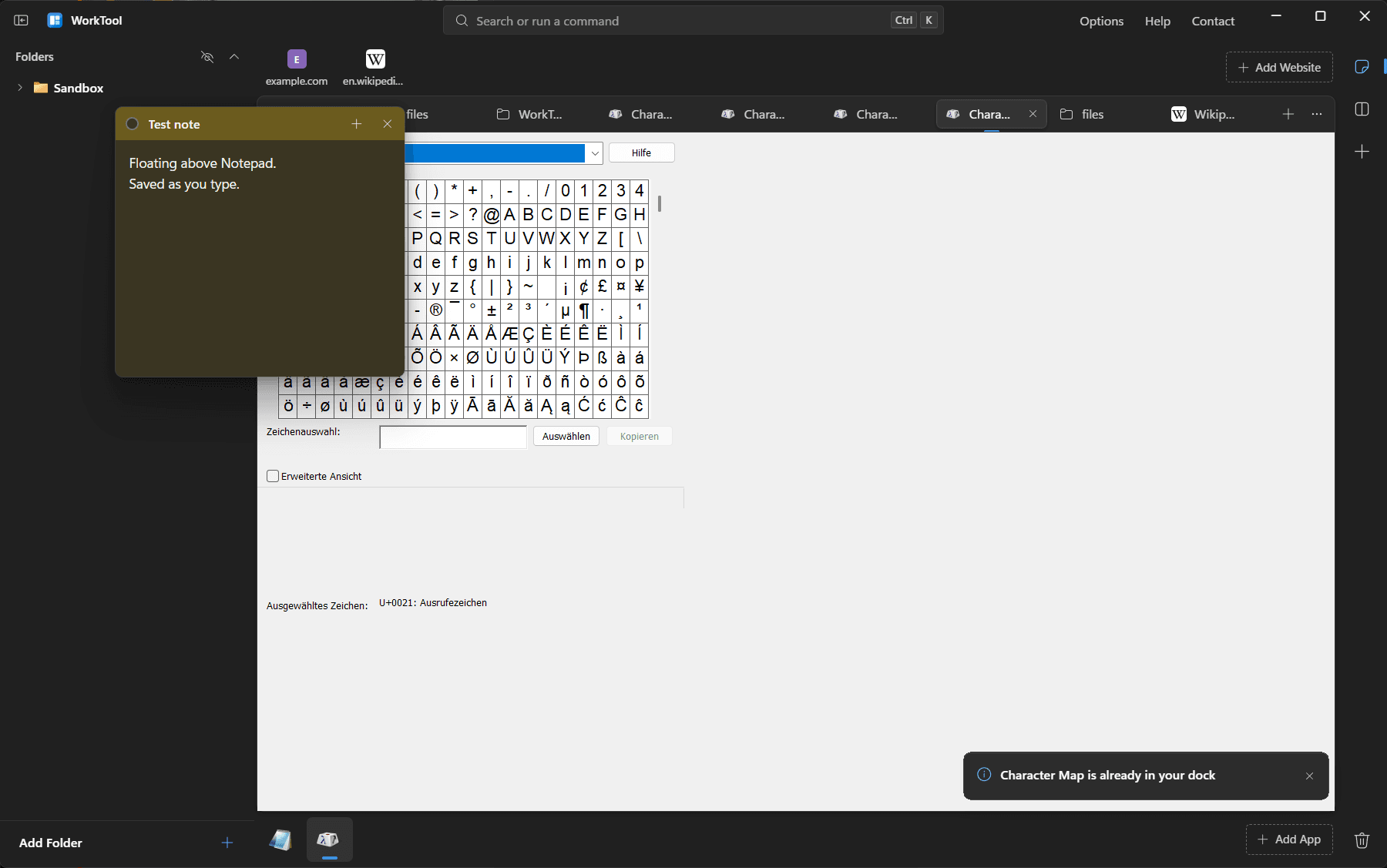
Click anything to open it in a tab: a folder opens in a File Explorer-style view, a website in the built-in browser, an app inside the window. Pick a multi-view layout to keep up to four panes side by side, each with its own tabs.
Apps that Windows won’t let WorkTool hold, like Microsoft Store apps, open in their own window and the tab tells you so.
- 5
Keep notes and find anything
Press Ctrl Alt N for a floating note that stays above everything and saves as you type. Press Ctrl K to search websites, apps, folders, open tabs and every action, or Ctrl P to find files across your folders.
These shortcuts work even while an app or website inside WorkTool has the keyboard.
- 6
Close, and come back to the same place
When you quit, WorkTool hands every app it was holding back to the desktop, so nothing is closed by surprise. When you start it again, your tabs, panes and layout are back. App tabs come back with a Start button, and open notes reopen where you left them.
Closing an app’s tab is different: that closes the app for good, so nothing keeps running in Task Manager.
See it for yourself
The interactive preview lets you try every step above with sample data.